
Earnings & Payouts
Your Creator Dashboard — found under Me → Creator Center — is where you see how your worlds are doing (plays, players, favorites, messages) and where you cash out money tips from supporters.
To do
The top of the dashboard lists up to three cards that need you:
- Low click rate -- at least 200 Discover impressions in the last 7 days and a click rate below 3/4 of the site average. The button opens the editor.
- New players -- at least 20 more unique players than last week, and at least 30% more. The button copies a share link.
- Unpublished changes -- edits that have waited 3+ days without being published.
This week vs last week
Four numbers: plays, unique players, favorites, messages, each compared with last week. Weeks are the last 7 days counted back from now, not calendar weeks. The chart below shows daily plays: solid line this week, dashed line last week.
Your own plays on your own cards are never counted here.
Discovery funnel
Pick a card to see its last 7 days:
| Metric | How it's counted |
|---|---|
| Click rate | Discover clicks ÷ Discover impressions |
| Conversion | Plays started from Discover ÷ Discover clicks |
| Quality rate | Share of all plays (any source) that lasted 5+ minutes |
| Return rate | Share of last week's players on this card who came back this week. Continuing an old save counts |
An impression only counts when the card was actually seen (at least half visible for half a second).
Each rate is compared with the site average: green is above, yellow is slightly below (at least 3/4 of it), red is below. With too little data you'll see "Not enough data": click rate needs 200+ impressions, conversion 20+ clicks, quality rate 20+ plays, return rate 30+ players last week.
Click a rate to see it against the site average, its change from last week, and the settings that affect it.
Card status
A table with each card's four rates and its Biggest drop, the step furthest below the site average. Click a row to open that card in the funnel.
The hero
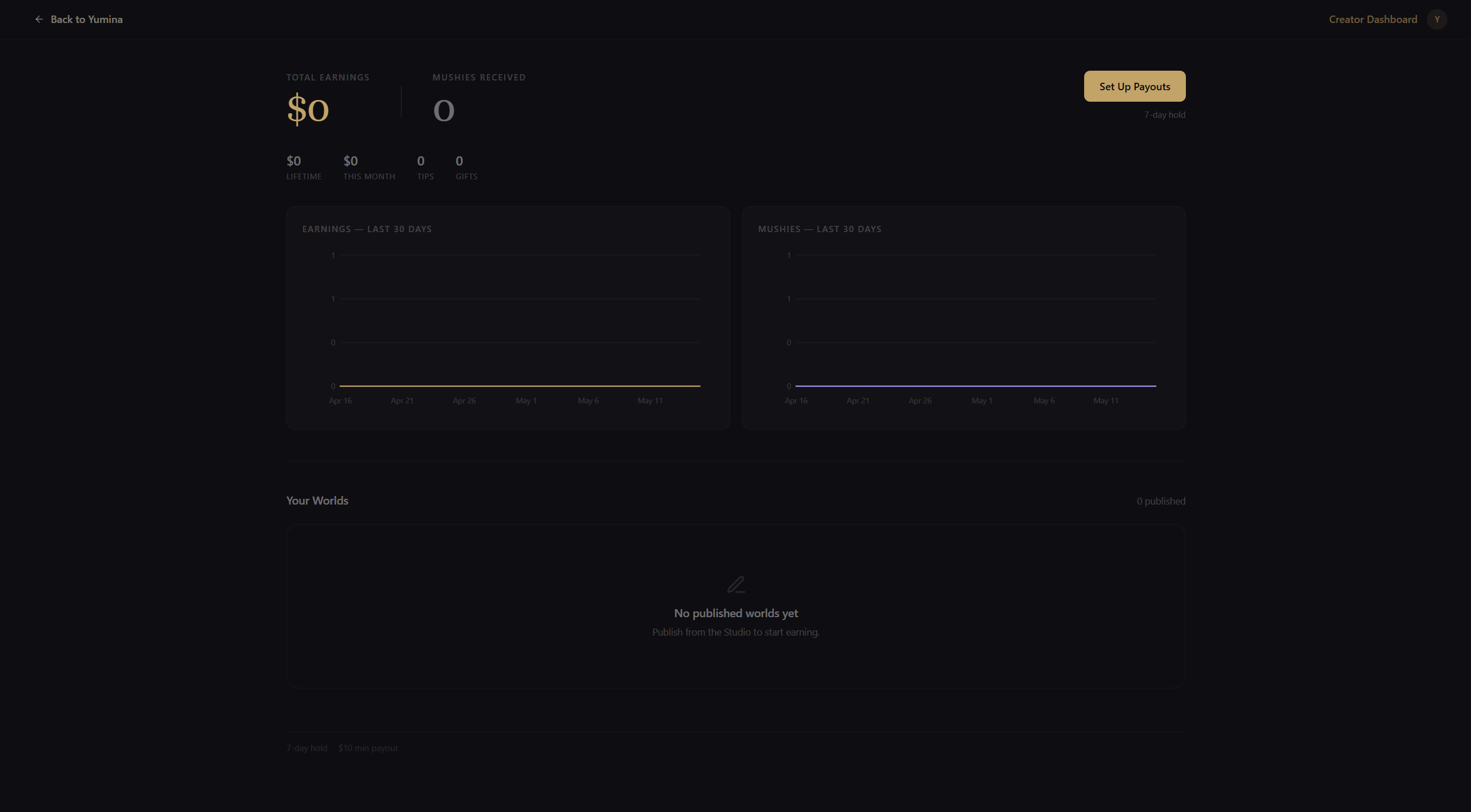
At the top of the dashboard you'll see two big numbers side by side:
- Total Earnings -- money tips you've received, including pending and available balance, in your local currency (USD-equivalent under the hood)
- Mushies Received -- the lifetime total of mushie gifts in your wallet
Below those, a stats row breaks down:
- Lifetime -- all-time money earnings
- This Month -- money earned this calendar month
- Tips -- count of money tips received
- Gifts -- count of mushie gifts received
To the right is the Cash Out button. If your Stripe Connect isn't set up yet, this becomes Set Up Payouts and walks you through onboarding.
Charts
Two side-by-side charts sit under the hero:
- Earnings — Last 30 Days (gold) — daily total tip revenue
- Mushies — Last 30 Days (purple) — daily mushie gifts received
Both charts always render, even at zero, so you can see when things start picking up. Hover for per-day tooltips.
Your Worlds
A grid of every published world you own. Each card shows:
- Thumbnail (with a gold earnings badge in the corner if that world has earned anything)
- Title
- Plays, favorites, messages, average rating
Click any card to drill into the per-world view.
Per-world detail
Inside a world's detail view you get:
- Four metric cards -- Plays · Unique Players · Favorites · Messages (for the selected time window)
- Extra stats row -- Avg Session, Conversion (card views → plays), Card Views, Reviews
- Charts — one per metric, showing the daily trend
The period picker (top-right) toggles between 7 / 30 / 90 / 365 days. The 30-day default usually has enough signal without too much noise.
Recent Support
Below the worlds grid, when you have any support history, a Recent Support section appears:
- A feed of recent tips and mushie gifts, with sender name (or "Anonymous"), amount, and any message the supporter left
- A Top Supporters column on the right -- your highest-cumulative supporters with avatars
Anonymous tips appear in the feed with the name "Anonymous" -- you get the amount and message, but not the identity.
Stripe Connect & cash-out
To turn money tips into actual bank deposits, link a Stripe Connect Express account:
- Click Set Up Payouts in the dashboard hero and choose the country you live in. Payouts reach the US, UK, EU/EEA, Canada and Switzerland; anywhere else, spend your tips on mushies instead (below)
- Stripe walks you through identity verification (name, address, bank account, tax info as required by your country)
- Your status switches to Payouts active once Stripe approves
Once active:
- The Cash Out button releases your available balance to Stripe, which pays out to your linked bank on its standard schedule
- The Stripe Dashboard link in the dashboard footer takes you to your Stripe Express dashboard for payout history, account updates, and tax forms
Holds, fees, and minimums
| Value | |
|---|---|
| Platform fee | 20% of gross tip |
| Stripe processing | Deducted separately by Stripe per their pricing |
| Hold period | 7 days after each payment succeeds |
| Minimum payout | $10 |
Earnings start as pending for 7 days (refund/dispute window) and automatically roll into your available balance after. The hero shows pending and available separately when there's anything held.
Spend tips on mushies
Tip earnings can pay for mushie packs, wherever you live and with no payout account:
- In the dashboard hero, click Spend on mushies (or open Plans › Mushie Packs)
- Switch Pay with to Tip earnings
- Pick a pack and confirm. The amount comes out of your earnings and the mushies land in your wallet right away
Paying with earnings gives 5% more mushies, on top of any membership pack bonus, and they never expire. Convert all turns what is left (at least $0.50) into mushies at the smallest pack's rate, with the same bonus. Only earnings past their 7-day hold can be spent; anything spent is no longer paid out.
Mushie gifts
Mushies received from supporters are pure profit -- no platform fee, no Stripe processing, no hold. They land in your wallet instantly and you can spend them on anything that takes mushies (your own AI usage, paid models, etc.).
Support entry in a fullscreen world
The play header carries a heart button players use to support you. A world with a fullscreen custom UI covers that header — so unless the world offers its own entry, its players have no way to reach the tip dialog at all.
If your world takes over the screen, have it call api.openSupport() from somewhere calm — a corner of the title or pause screen. It opens the same dialog with the same attribution to this world; you never handle payments yourself. See the API reference.
Keep it small and never interrupt play with it. A support prompt shown mid-scene, or right after a player loses, converts worse than one sitting quietly on a menu.
Tax
Stripe Express handles tax forms (1099-NEC for US, the equivalent for other regions) once your annual earnings cross the local reporting threshold. You can find the forms in your Stripe Dashboard. Yumina does not produce separate tax documents.
See also
- Publishing — how to publish a world so players can find and support it
- Supporting Creators — the player-side of tipping, useful for understanding what your supporters see