
The Creation Assistant and Your Own AI
The canvas has a built-in Creation assistant, and you can also hook up the Claude, ChatGPT or Cursor you already use to edit your card.
The Creation assistant
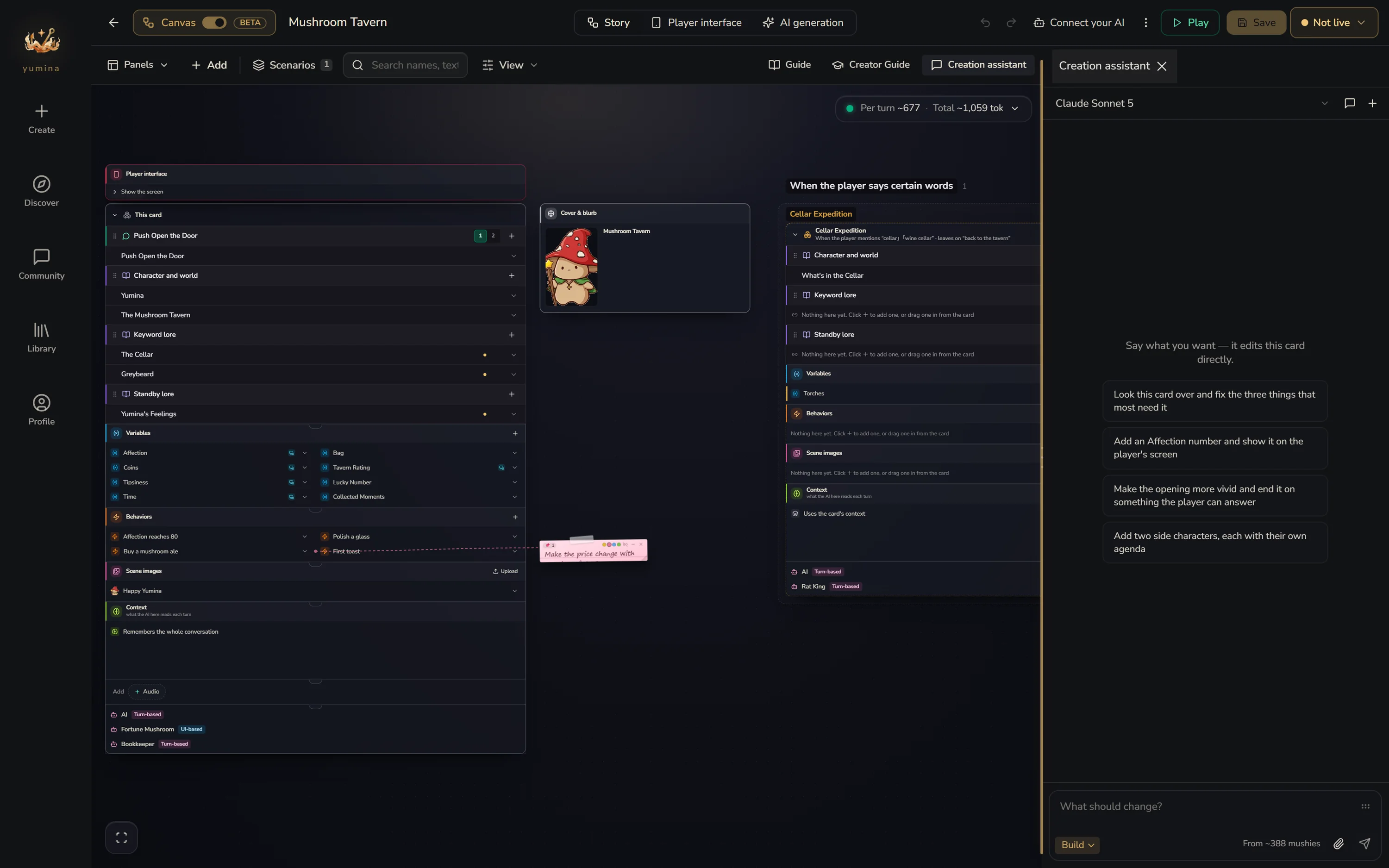
Click Creation assistant in the top right of the canvas and its chat opens on the right. Tell it what you want in everyday words:
"Add a sly merchant called Vex who talks in riddles and has trust issues"
"Make a hunger system that drops over time. When it hits zero, the player dies"
"Build a dark fantasy interface with health, mana and inventory slots"
"Combat's too easy. Make enemies hit harder and add a wound system"
It can write lore and openings, add variables and behaviors, open scenarios, add AIs, build the player interface, check where things are wired wrong, and search the whole card. Its changes show up live on the canvas.
Two modes
New conversations start in Plan. Once the scope is clear, the assistant offers a build confirmation with a summary and concrete steps. Start building switches modes and executes the exact plan you reviewed. Keep brainstorming leaves the card unchanged; the same plan will not pop up repeatedly. Use Review build plan to reopen it.
You can also switch under the input box:
- Plan: for when you haven't decided what to make yet. It chats with you and helps shape your ideas into a creative brief, without touching the card
- Build: gets to work on the card, using the creative brief you confirmed
Changing only certain parts
First select the parts you want changed on the canvas (Ctrl + click to pick several), then talk to the assistant, and it focuses on just those. What you selected shows up as little tags above the input box.
Each part also has Write this one for me. One click asks the assistant to write just that part.
Sticky notes
The assistant reads every sticky note on the canvas and knows what each one is stuck to. If you have too many ideas to explain at once, stick them on as notes first, then tell it "go through the sticky notes and do all of these".
Looking things up online
For fan cards and cards based on an existing work, the assistant looks up the canon facts it is unsure of (names, ages, relationships, abilities, the order of events) on fan wikis, Fandom and Wikipedia, and links its sources in the reply. You can also paste an address for it to read. It does not search for things you are inventing.
- Each search costs about 8 mushies from your balance (also when you use your own API key, since the search runs on Yumina); reading a page is free
- At most 12 searches and 24 pages per request
- Some sites refuse to show pages to servers; the assistant then uses the search excerpt or another source
- To keep it offline: open Plan / Build under the input box and untick Web search (remembered in this browser)
- When the card has the original book attached, the book wins; the web only fills gaps
If it breaks something
After each round of changes, a little strip called The assistant's last turn appears at the bottom of the canvas, saying how many things were added, changed and removed. Click Undo this turn to undo the whole round.
Tips
- One layer at a time. Get the characters and lore right first, then add mechanics, then polish the interface last. Don't try to describe your whole world in one message
- Ask it to check. After a few rounds of changes, tell it "check whether anything is wired wrong right now"
- It keeps working in the background. Once you've sent a request, you can leave Studio or go work on another card. When it's done, needs a decision from you, or stops, a notice pops up in the app. Click it to jump back
- Using the assistant costs credits. Before starting a big job, it tells you roughly how long it'll take and how much it'll cost
Connect your own AI
If you'd rather use your own AI tools, you can let them sign in to your Yumina account directly and edit your cards. Supported: Claude, ChatGPT / Codex, Cursor, Claude Code and Codex CLI.
Open the ⋮ menu at the top right, click Connect your AI (a new card needs to be saved once first), pick the one you use, and follow the steps. It goes roughly like this:
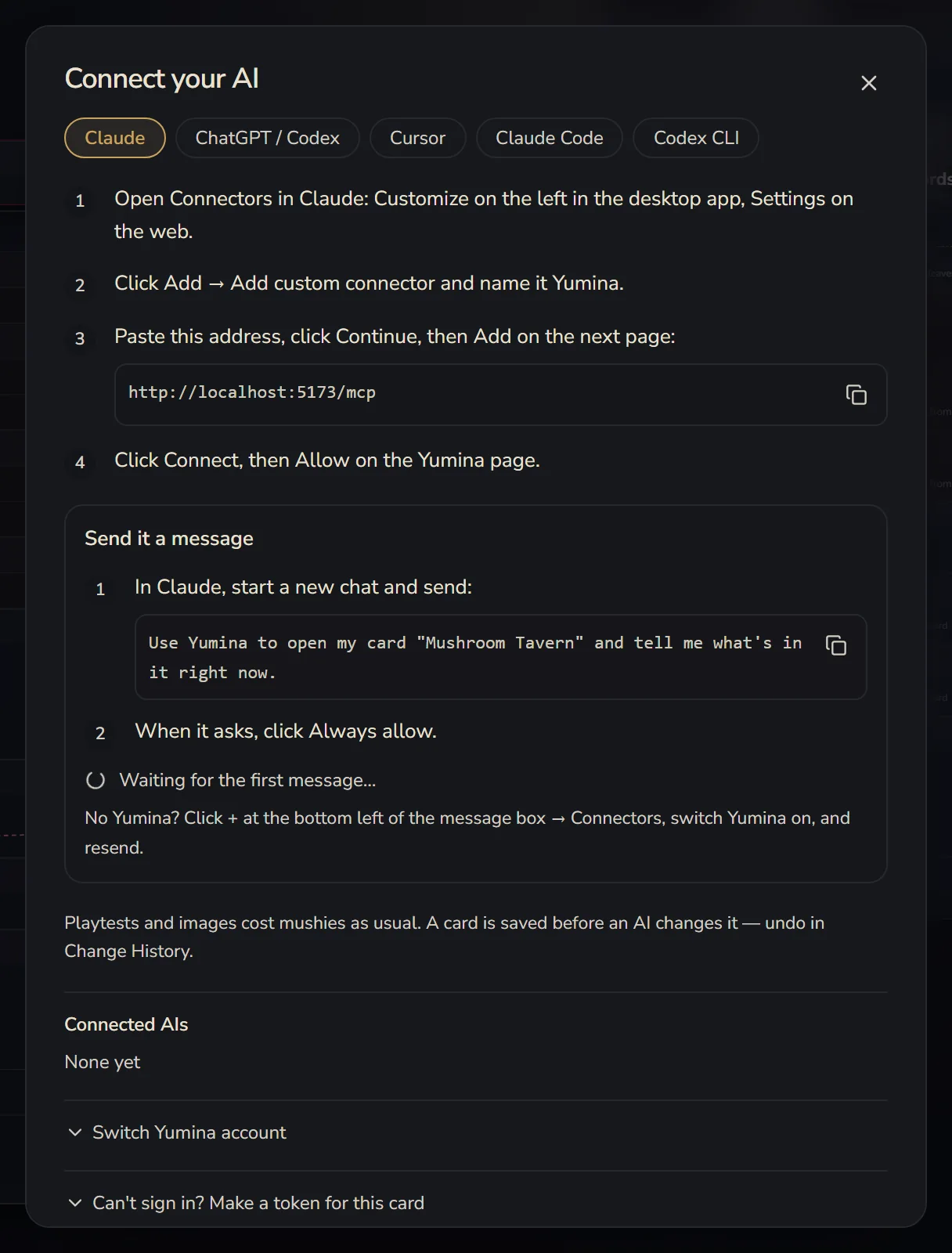
- In your AI tool, add a connector / MCP server with the address
https://yumina.io/mcp - It pops up a Yumina page for you to sign in. Click Allow
- Back in the dialog, follow Send it a message: in Claude, for example, send "Use Yumina to open my card "Mushroom Tavern" and tell me what's in it right now". Once the dialog sees it's connected, it'll let you know (๑•̀ㅂ•́)و✧
Claude Code and Codex CLI are added in the terminal. The dialog gives you a command you can copy straight in. For Codex CLI, also add tool_timeout_sec = 300 under [mcp_servers.yumina] in ~/.codex/config.toml: Codex gives a tool 60 seconds by default, and a playtest or picture can take longer.
DeepSeek (DeepSeek Harness) can't sign in yet, so its tab makes a token for the card you have open and gives you a ready file and a command to run. That token only edits this one card.
Once connected, it can do about as much as the Creation assistant: read the card, write lore and variables, add behaviors and scenarios, change the player interface, generate pictures and playtest. Its changes show up live on the canvas you have open. It reads your sticky notes, too.
A few things to know:
- It can't publish. Publishing is always a click you make yourself
- It saves a checkpoint before every change to your card. In ⋮ → Change History you'll see "Before: (the AI's name)". You can roll back to that point
- Playtests and image generation still cost your mushies, same as if you clicked them on the canvas yourself
- There are a few limits to catch slip-ups: at most 30 playtest turns and 20 generated pictures an hour, and at most 20 new cards a day
- Connected AIs in the dialog lists everything that's connected. Click Disconnect to take the access back
- If signing in keeps failing, click Can't sign in? Make a token for this card. It makes a token that can only edit this one card and expires after 90 days. Put the address and header into your tool and you're set. The token is only shown once, so copy it right away
There's no way to do this on a phone yet. You'll need to connect from a computer.
World Spec
If your AI tool doesn't support connectors, you can download the World Spec instead: a complete technical reference written for AIs to read. Have your AI read it, describe what you want so it writes the card's JSON, then import that into Yumina.