
Variables
Variables are the things your story needs to remember: affection, health, coins, where you are, what's in your bag. The AI sees them every turn and changes them as the story goes.
Just describe the variable itself, in plain language
In a variable's Behavior Rules, all you need to say in plain words is what the variable is and when it should change. No need to mention syntax like [health: -1]. Our engine has already taught the AI that part.
✅ Write this: "Drops when the player takes physical damage, scaled by how bad it is. A punch is -5 to -10, a knife wound -15 to -25. Recovers slowly when resting."
Add a variable
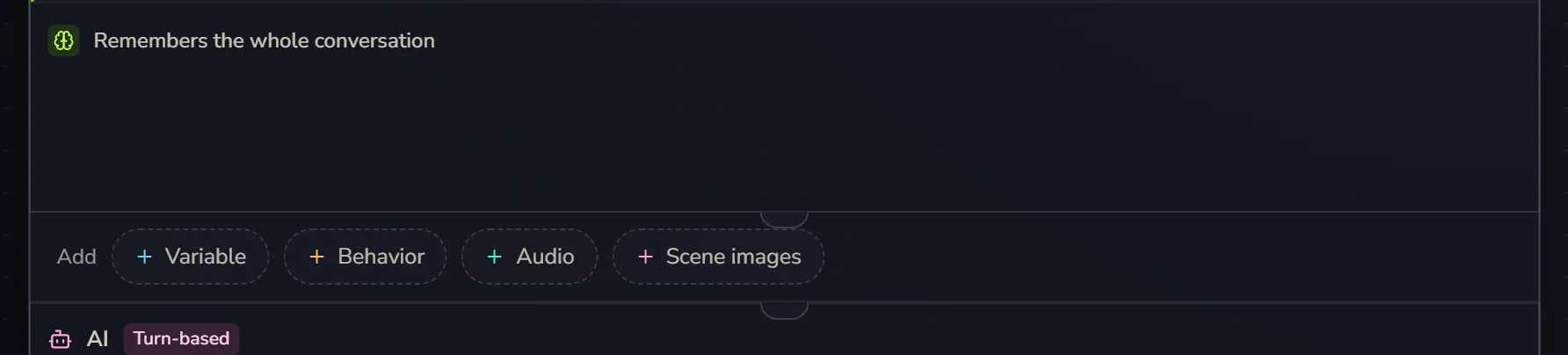
Click + Variable in the Add row at the bottom of the card:
A Variables block appears in the card, with the new variable's settings already open:
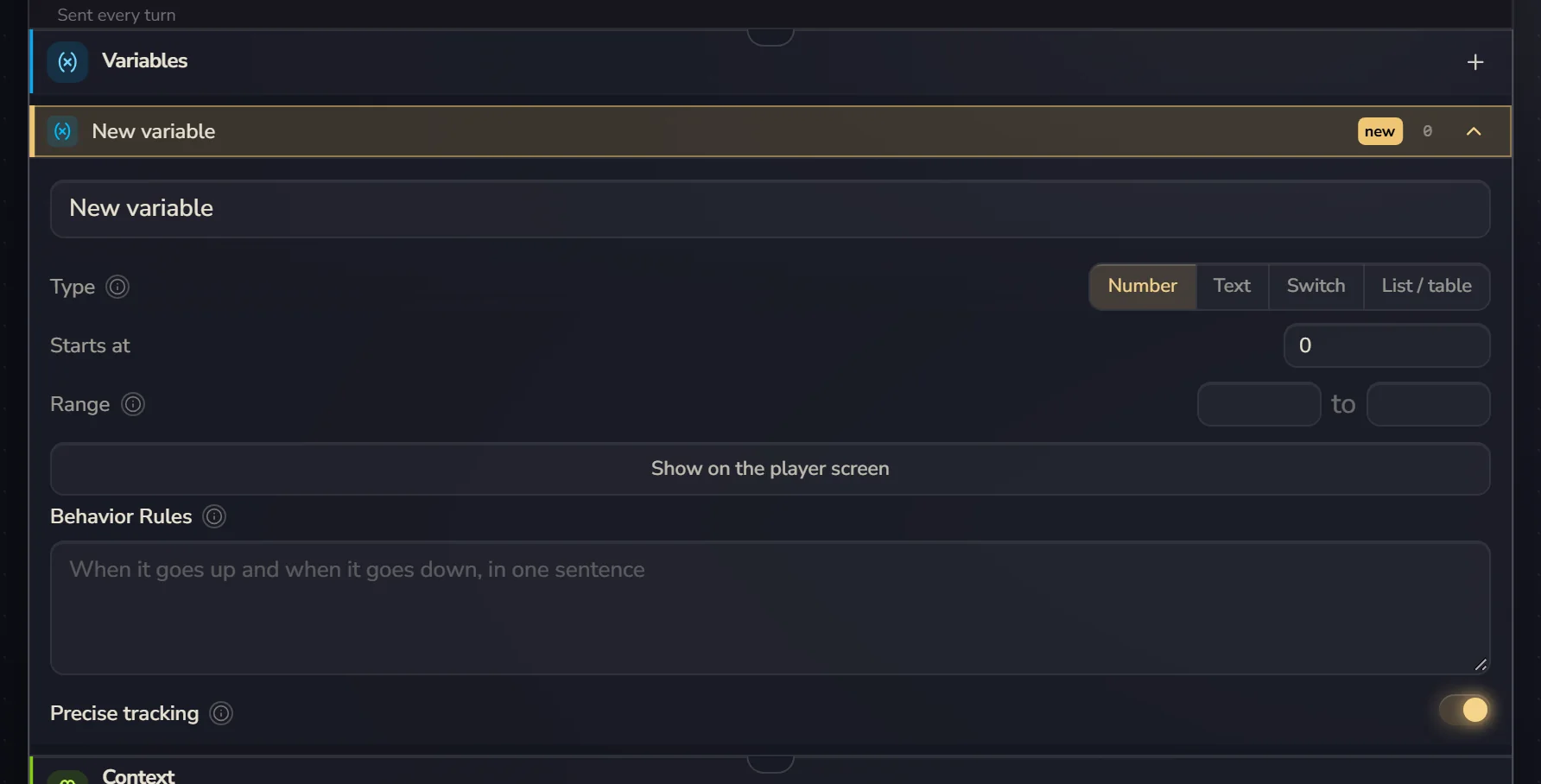
Change the name, pick a type, fill in the starting value and range, then write the Behavior Rules. To show it to the player, click Show on the player screen.
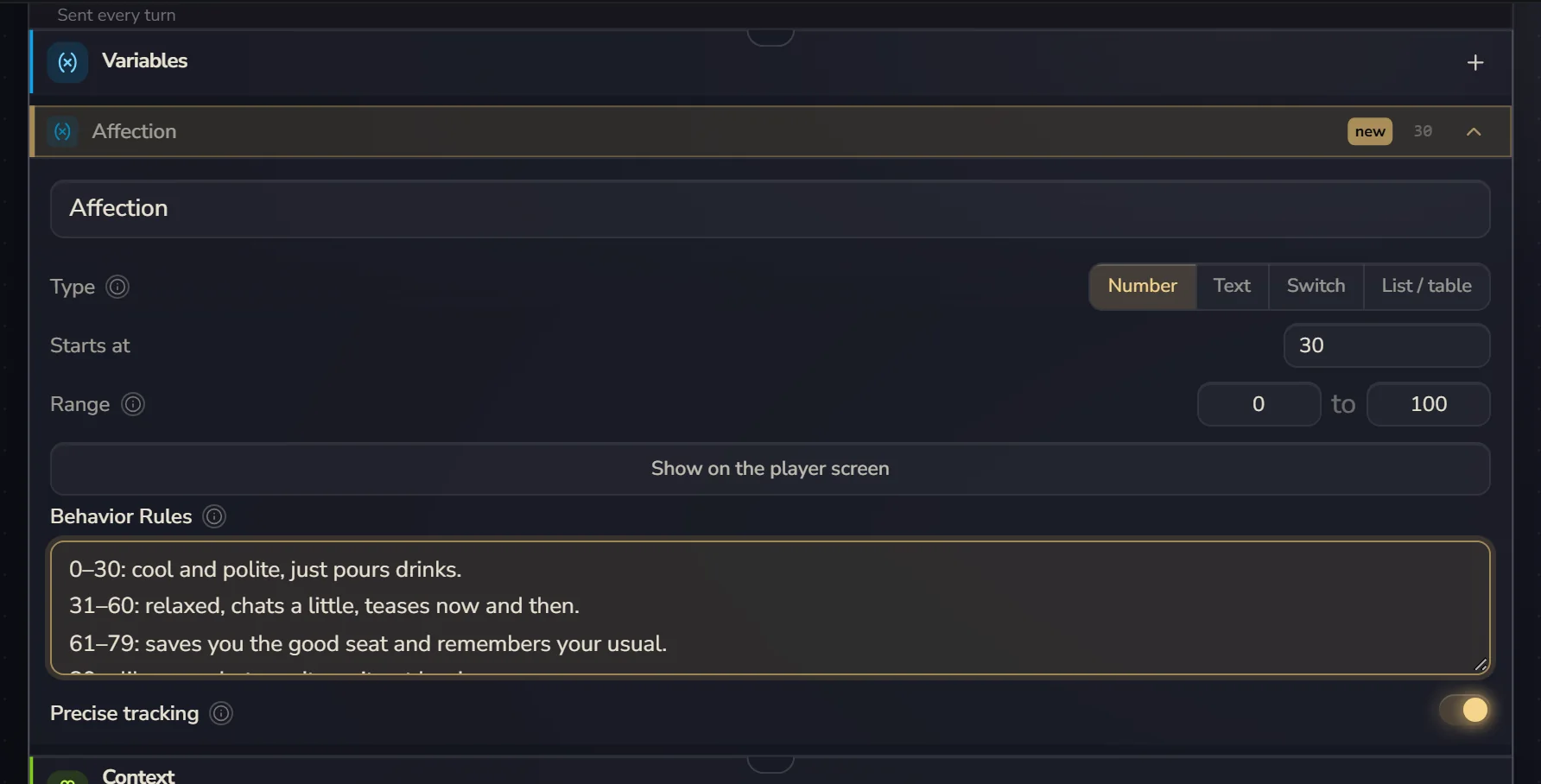
Further down, three more sections are folded away: Formula (worked out automatically), What the AI does with it and Advanced. We'll get to those.
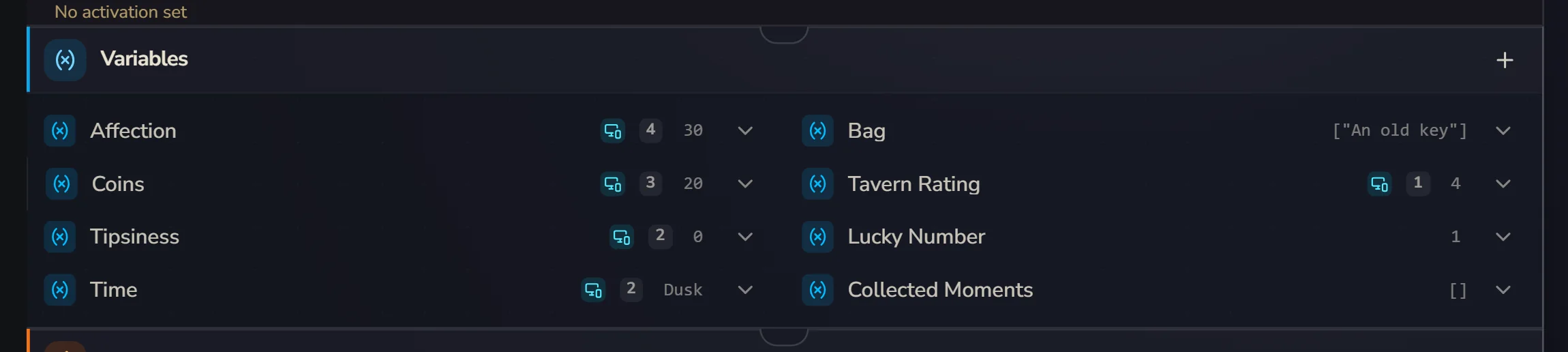
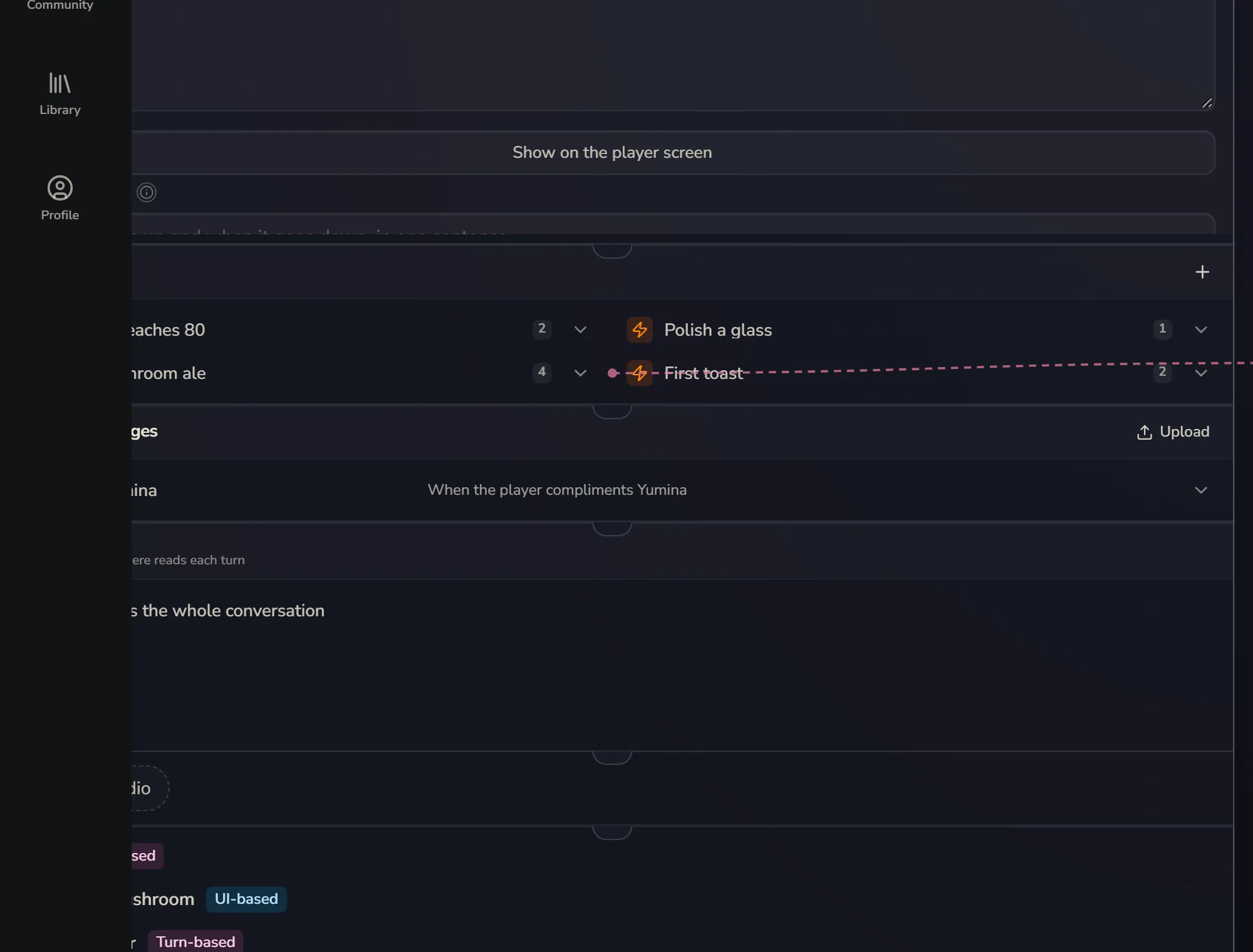
To change it later, click it twice in the Variables block and it opens again. Once you have lots of variables, the block shows them one per row:
Four kinds of variables
| On the canvas | Use it for |
|---|---|
| Number | Numbers you add and subtract: health 100, affection 20, coins |
| Text | A bit of text: current location, mood, time of day |
| Switch | Yes or no: has the key or not, has met someone or not |
| List / table | A group of things: inventory, relationships, a quest log |
Numbers can have a minimum and maximum, and the engine keeps them in range, so you'll never see -30 health. A list / table lets you change just one small piece of it, like the durability of the first weapon in the bag, without rewriting the whole thing.
Behavior Rules
This is the Behavior Rules box in an open variable: plain words that teach the AI when and how to change it. Leave it empty and the AI pretty much won't use the variable properly.
This box is a different thing from the automation on the canvas called "behaviors".
Good Behavior Rules
Variable: Health
This is the player's health. 0 = death: describe a death scene and end the game. 1-20 = critical (bleeding, struggling to breathe). 20-50 = wounded (pain gets in the way). 50-80 = scraped up. 80-100 = healthy. Drops on physical damage according to how bad it is. A punch: -5 to -10. A knife wound: -15 to -25. A fall from a height: -20 to -40. Recovers slowly when resting (+5 each time), +10 to +30 when healed. Never changes by more than 30 in one turn.
Patterns that work
Number ranges: what each range looks like in the story
0 = game over. 1-25 = desperate. 26-50 = struggling. 51-75 = getting by. 76-100 = confident.
When it changes
Goes up when the player helps villagers, gives gifts or protects them. Goes down on theft, threats or broken promises.
By how much
Never changes by more than 10 in one turn.
TIP
Two to four sentences is usually enough: give it the idea and the limits. If your Behavior Rules run longer than a short paragraph, trim them.
Precise tracking
Number and switch variables, and text variables with allowed values, can turn on Precise tracking (the canvas gives them a little "precise" tag). New number and switch variables have it on already. With it on, the story-writing AI stops changing the variable as it goes. Instead, a dedicated little helper rereads the latest scene every turn and decides whether it should change, and by how much. That's far more accurate than having the story AI change it as it writes.
When you turn on Precise tracking for a number, fill in Most it can rise per turn and Most it can fall per turn. Say you set both to 10: a compliment is +3, a gift is +8, snapping at her is -10, and affection never jumps around wildly. For a text variable, it only ever picks one of the options you give it.
Numbers with a huge combined range (like losing 500 health in one turn) don't support Precise tracking.
Formulas
Some numbers shouldn't be up to the AI at all. They should be worked out from other numbers, like "attack = base attack × (1 + level × 0.1)".
Fill in Formula (worked out automatically) in the variable's settings, for example base_attack * (1 + level * 0.1). From then on, whenever another variable changes, it recalculates itself. The AI can see it but can't change it. You can use + - × ÷, comparisons, and min, max, round, floor, ceil, abs, clamp and if. If a variable name has a space or a hyphen in it, wrap it in {}, like {max-health}.
Kept across playthroughs
Tick Kept across playthroughs (for this player) under What the AI does with it, and the variable follows the player instead of the game. When the player starts a new game, it picks up from the value they left it at.
Good for: how many times they've finished, endings they've unlocked, CGs they've collected, options that only show up on a second run. Works best paired with moments in behaviors.
What the AI does with it
Open What the AI does with it. The AI access setting inside decides whether the AI can see it and whether it can change it. By default it can do both. Use this instead of writing "AI, don't touch this" in the Behavior Rules, because the engine enforces it:
| Setting | The AI sees it | The AI can change it | Good for |
|---|---|---|---|
| AI can read & write (default) | ✓ | ✓ | Things only the AI can judge: affection, mood |
| AI read-only | ✓ | ✗ | Things a behavior or the interface changes while the AI just plays along: stage, rating |
| Engine only (hidden from AI) | ✗ | ✗ | Ledgers, counters and other internal bookkeeping. Costs the AI no text |
Only let the AI change things that only it can judge. Arithmetic, stage changes and reward bookkeeping belong to behaviors.
When the AI can see it
Open What the AI does with it and look for When the AI can see it:
- Always (default)
- Manual: a switch that behaviors turn on and off
- Conditions: it only shows up when a condition holds, like "Rage only shows when it's above 0"
- Openings: it only shows up in games that started from certain openings
While it's not showing, the variable stays out of the AI's prompt, doesn't appear on the player interface, and the AI can't change it. But the value is kept the whole time, and behaviors and the interface can still read it.
You can also put a variable inside a scenario. Then it only shows up while that scenario is open.
Letting players change it (Lore Shift)
Players with the Lore Shift extension can change lore and values in their own game. For that, you first turn on Allow session editing in Card settings, then turn on Players may edit this value in a session under Advanced for each variable you want to open up. It only affects that player's own game. Your original card doesn't change. Everything is off by default.