Publishing
Cover and asset rules: effective October 24, 2026 at 11:59 p.m. Pacific time. See the notice and previous rules.
Once your card is done, publish it and players can find it on Discover.
Content checklist
- Limited = every asset is safe for work and non-suggestive, including in-game art, audio, custom UI, and linked media.
- Limitless covers and public previews must be non-explicit: no nudity, sexual acts, or graphic gore. Keep intimate areas covered with opaque clothing.
- Check all public material: cover, gallery, screenshots, title, description, tags, and every language variant. Shared profile images must meet Limited standards.
- Blur does not make an explicit image acceptable. Mark a suggestive Limitless cover Blurred, but make sure it passes the rules when fully visible.
- Use assets you have rights to publish and follow the full cover, asset, and content rules. Review again after updates.
Before You Publish
- Playtest. Send 10 to 20 messages. Check that variables update properly, lore is sent when it should be, and how it plays.
- Write the blurb. It's the first thing players see on Discover. Say clearly what the card is about.
- Add a compliant cover image. A cover is required to submit a World for publication.
- Pick the content mode. Limited for regular content, Limitless for adult content. Mislabelling breaks the community guidelines.
- Add tags. Players find your card through them when searching and filtering.
How to Publish
- On the canvas, click Cover & blurb on the right. Fill in the name and blurb, and upload both covers, portrait and landscape
- Click Not live on the right of the top bar and choose to publish
- Before publishing, it runs through a short checklist: a name, a cover, an opening, and at least one playtest
- In the publish dialog, set the content mode, visibility, and whether others can edit; tick the terms; click Publish
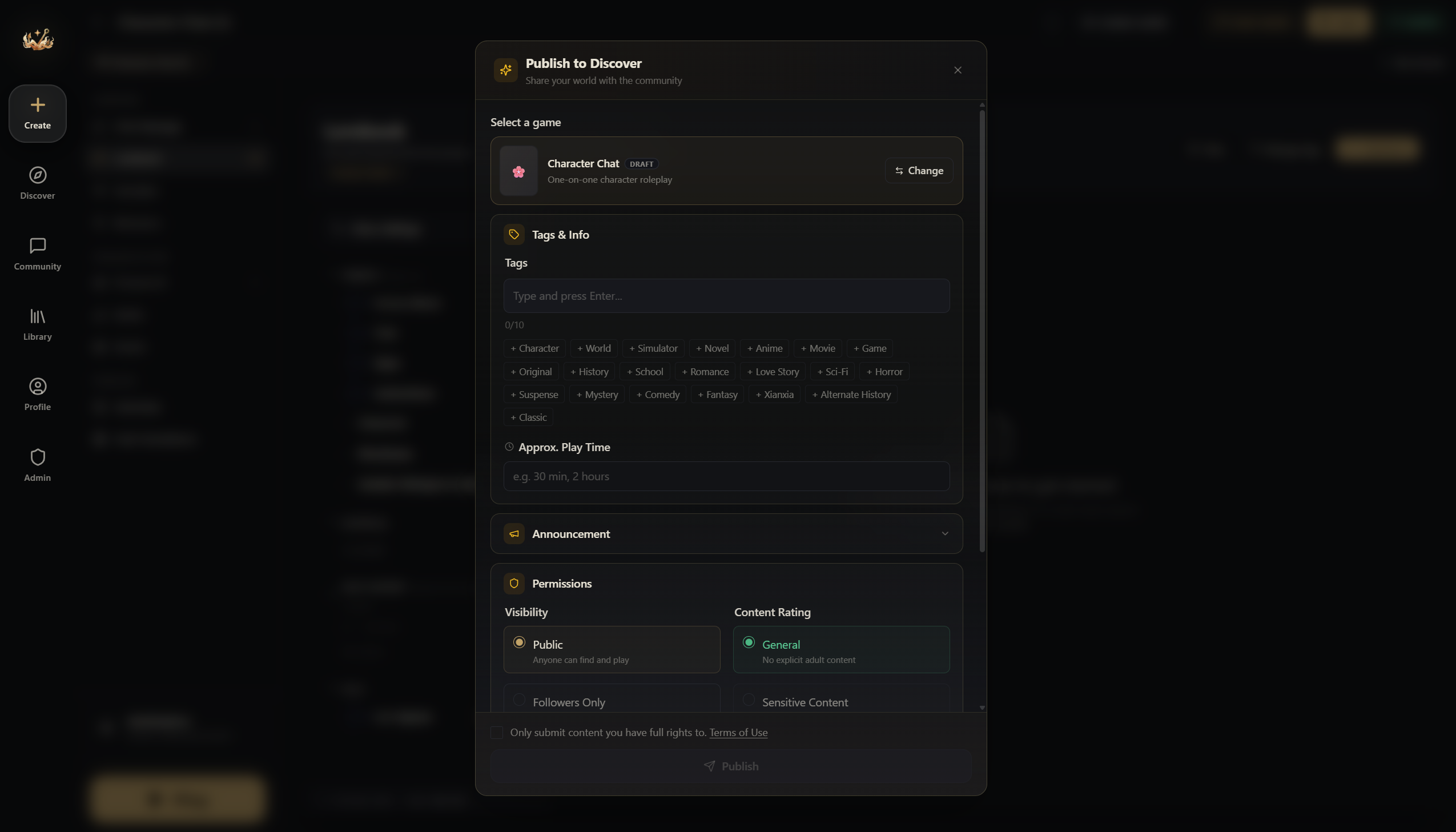
Once it passes review, eligible players can discover it according to its visibility and content mode. Creators with review bypass enabled can publish without waiting for admin review; the same content rules apply.
Lore Shift
The publish dialog also has a Lore Shift section. Players with the Lore Shift extension can change the lore and values you allow in their own game, like setting their coins to 999 or adding a new character. It only affects that player's own game. Your original card doesn't change.
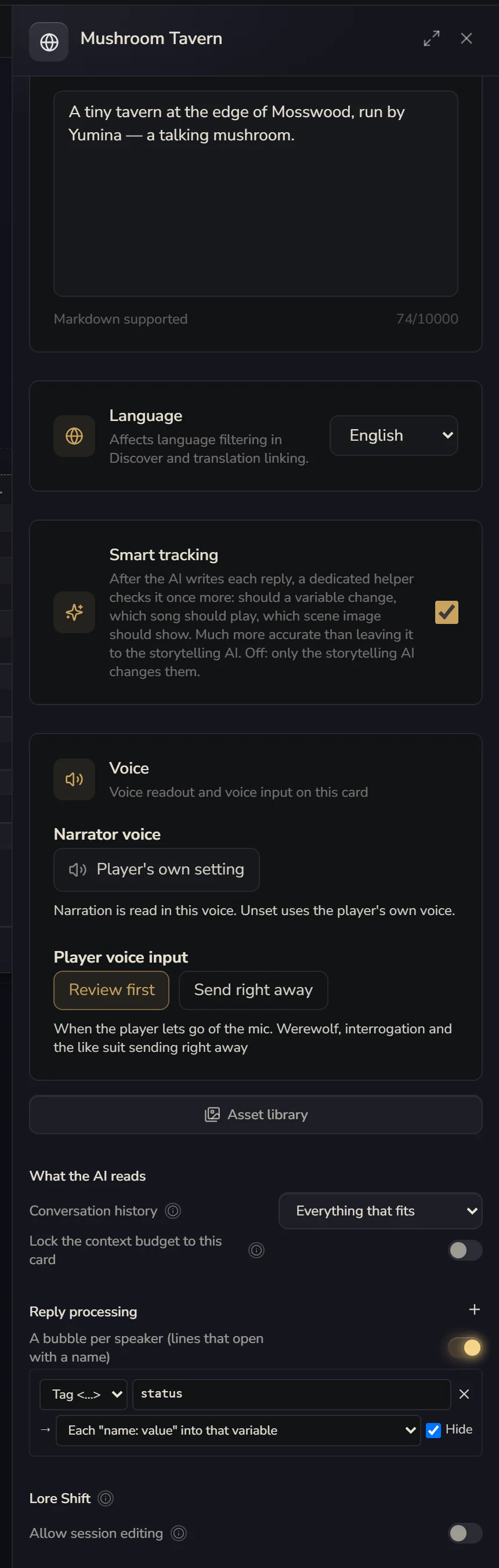
- Allow session editing: the master switch. While it's off, nothing below it does anything
- Allow new session lore: lets players add new lore to their own game. It ranks below the lore you wrote
- Then tick Players may edit this lore in a session on the lore you want to open up, and Players may edit this value in a session on the variables you want to open up
Everything is off by default.
Updating a Published World
You can keep editing after you publish. Your changes are first saved as "unpublished changes", and players still see the live version. When you're ready, open the publish menu in the top right and submit the update. You can add a short update note while you're at it, and once it passes review, it's sent to players who've played your card.
Players who already started a game aren't affected. They keep playing the version they started with. New games use the updated version.
Version History and Rollback
On the canvas, open it from Panels → Version History (in the full editor it's in the top bar or the ⋮ menu). Updating and publishing save one version of the changed content, cover and age rating. Submitting unchanged content again reuses the matching automatic record. Once approved, that same saved version is marked as the live version, without making a separate published copy. Saving, publishing and switching the live version don't make an extra backup of the live content you're switching away from.
Each Saved version is marked Not published, Currently live or Previously published. Each world keeps up to 20 automatic records, including restore backups, plus 10 manually named versions. When automatic history hits its limit, older records are cleared out. Manually named versions are always kept separately. Even if their content matches an automatic version, automatic history won't replace them.
- Restore to draft: pick any saved version to replace the content, cover and age rating you're editing. The live version stays as it is. Leave "Save current state as a safety snapshot first" ticked to back up your current draft first. After restoring, playtest to check, then publish through the normal process.
- Make live: while your world is published, you can pick an eligible version marked Previously published to switch the content, cover and age rating everyone sees. Currently live marks the version in use. The draft you're editing is kept separately, and existing history still follows the automatic-record limit.
Neither action rolls back listing details like the title and tags. Only eligible versions that were actually live before offer Make live. Named versions and saved versions that were never published have to be restored to a draft first, then published through the normal review process. The optional restore safety copy is labelled Backup before restore. You must withdraw any update under review before switching. If a world was taken down and approved again, versions from before the latest approval can't be made live directly.
Multi-Language Support
One card can have several versions, like a Chinese version and an English version, or different versions of the same story. On the canvas, open Panels → Languages & variants, or click Cover & blurb. The variants are right at the top, where you can switch between them or make a new language version.
Each variant is its own separate content: lore, openings and variables all need to be written again in that language. They're linked together through a language group, and players see the version in their own language on Discover.
To unpublish, open the publish menu and click Unpublish. The dialog defaults to Current variant only. Choose All published variants to take down your published variants in the same language group, or Choose variants to select individual versions, including different variants in the same language. Drafts and other variants that are not published are excluded.
Before confirming, check the selected variants and the ones that will remain published. Only the selected variants are taken down; players with existing sessions for those variants lose access until they are published again. Unselected published variants remain available.
Gallery Images
Add up to 8 gallery images to show off your world, like gameplay screenshots, custom UI or promo art. They appear on the card's details page.
Every gallery image is a public preview and must follow the cover and asset rules, even if it is a screenshot from Limitless gameplay.
Announcements
Pin an announcement to the card's details page to tell players about updates, events or other important news. Up to 5,000 characters.